A Guide to WordPress Security That Does Not Require a Degree in IT

Let’s be honest. When you hear “WordPress security,” you might picture a hooded figure typing furiously in a dark room, or a wall of code that only a developer could love. For most of us running a small business, a blog, or a passion project, that’s just not reality. I’m Simone Tran, and I’ve spent years helping everyday people keep their WordPress sites safe without needing a computer science background. This guide is about practical, no-nonsense steps you can take this afternoon. No jargon, no panic—just clear actions that work.

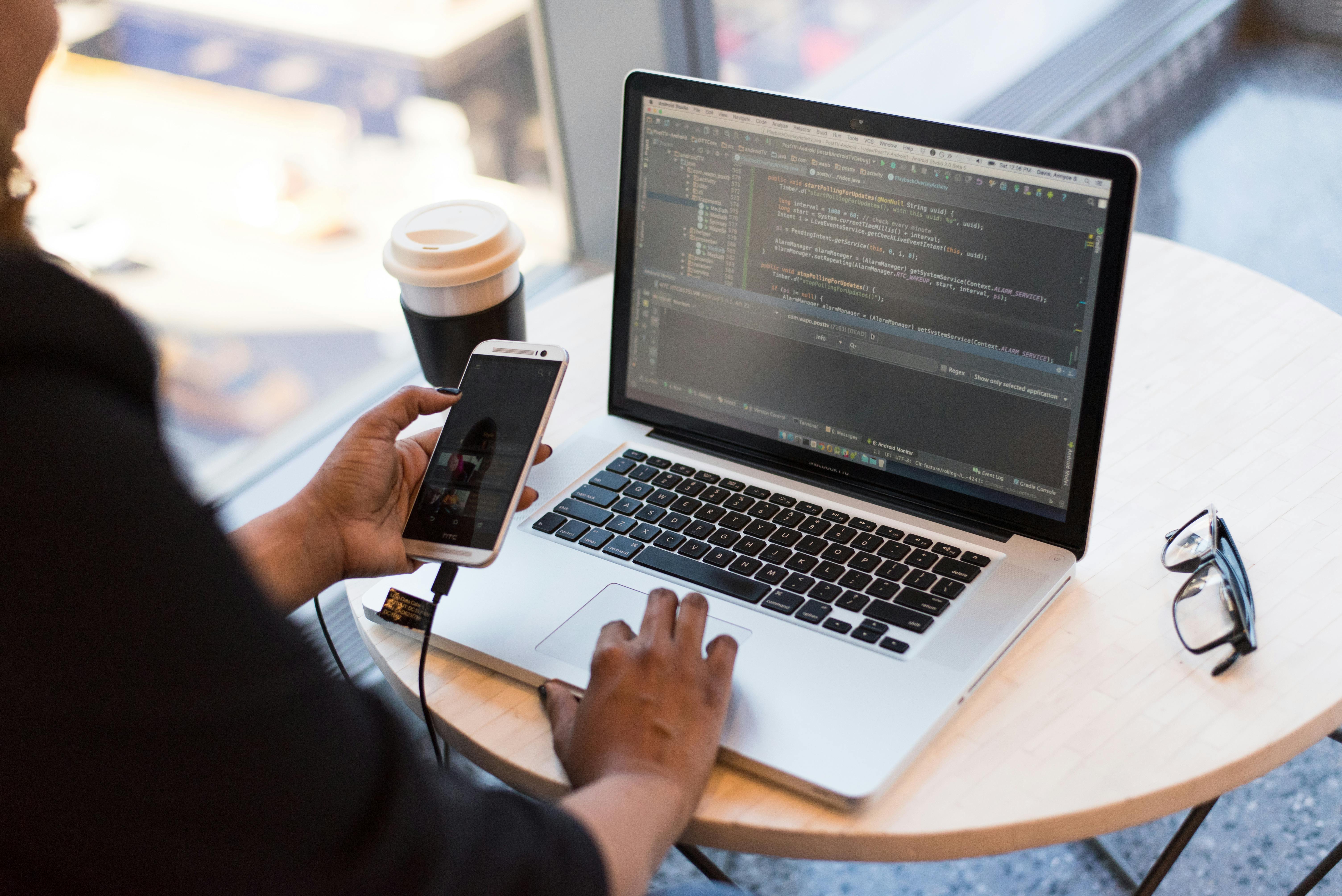
Person working on laptop at a clean desk, symbolizing practical WordPress security

Why Most Security Advice Makes You Feel Inadequate

Walk into any WordPress forum and you’ll get bombarded with instructions to edit your .htaccess file, set up a Web Application Firewall, or run command-line scans. That’s fine for techies, but for the rest of us, it’s like being told to rebuild your car engine when you just want to change the oil. The truth is, most successful WordPress attacks happen because of simple, preventable mistakes—not because you failed to implement military-grade encryption. The basics, done consistently, stop an overwhelming majority of threats. And those basics are what we’ll cover here.

The “Front Door” Problem: Logins and Passwords

If a burglar walks up to your house and finds the key under the mat, they’re not going to bother picking the lock. Your WordPress login page is that front door. Hackers use automated tools that try thousands of common username and password combinations per minute. The fix isn’t complicated, but it does require a shift in habit.

Step one: never use “admin” as your username. If you set up WordPress years ago and still have that default, go to Users → Add New right now. Create a new account with a unique name and give it the Administrator role. Then log in as that new user and delete the old “admin” account, making sure to attribute all content to the new user when prompted. This single change stops a huge chunk of automated login attempts cold.

Step two: passwords. I know you’re tired of hearing about strong passwords, but here’s the friendly kick in the pants: “Summer2024!” is not strong. Use a password manager like Bitwarden or 1Password to generate and store long, random strings. If that feels like too much, at least aim for a passphrase—three or four random words strung together with numbers and a symbol, like “FrogMountain42#Sailboat.” It’s easier to remember and surprisingly hard to crack. Enable two-factor authentication (2FA) as well. Plugins like Wordfence or Two-Factor make this a five-minute setup. Even if someone gets your password, they’ll need a code from your phone to get in. That’s your deadbolt.

Updates: The Least Glamorous, Most Effective Shield

I can’t stress this enough: running outdated software is the number one reason sites get compromised. When you see that little red circle in your dashboard telling you a plugin update is available, it’s not just a nag—it’s a warning. Security researchers find vulnerabilities in WordPress core, themes, and plugins all the time. Developers rush out patches, and then hackers reverse-engineer those patches to find the holes in sites that haven’t updated yet. You’re not being targeted personally; you’re just low-hanging fruit.

Here’s a routine that takes ten minutes a week. Pick a day—I do Mondays with my coffee—and log into every site you manage. Go to Dashboard → Updates. Update WordPress core first, then plugins, then themes. If you’re nervous about an update breaking something, most reputable hosts offer one-click staging sites where you can test updates in a clone of your live site. But honestly, for the vast majority of small sites, updating directly is safe. The bigger risk is leaving known vulnerabilities unpatched. Turn on auto-updates for minor core releases and for plugins you trust. You can find these options right on the Updates screen.

Person updating WordPress dashboard on a tablet, demonstrating easy maintenance

Plugins and Themes: The Hidden Backdoors

Every plugin or theme you install is code running on your server. The more you have, the more doors exist that an attacker could potentially pry open. I’ve seen sites with 40+ plugins, half of them deactivated and abandoned by their developers years ago. That’s like leaving old, unlocked windows in a house you never check. Go through your plugin list now. Delete anything you’re not actively using. For the ones you keep, check the plugin’s page on the WordPress repository. Look at the “Last Updated” date. If it hasn’t been updated in over a year and has a large user base, it might be fine—but it’s worth finding a more actively maintained alternative. Nulled or pirated premium plugins and themes are a special kind of danger. They often come with malware pre-installed. Pay for your tools, or use only free versions from trusted sources.

Hosting: Your Foundation Matters More Than You Think

You can do everything right on your end and still get hacked because your hosting environment is a mess. Cheap shared hosting packs hundreds of sites onto one server. If one of those sites gets infected, the malware can sometimes jump to others. That’s rare with good hosts, but common with the bargain-bin providers. Look for a host that takes security seriously. You don’t need to understand the technical details, but you should see phrases like “automatic daily backups,” “server-level firewalls,” “malware scanning,” and “24/7 support” in their feature list. Managed WordPress hosting—like WP Engine, Flywheel, or SiteGround’s managed plans—handles many security tasks for you. They might cost more, but they save you time and stress. If you’re on a budget, at least make sure your host offers easy backup restoration. You’ll thank me later.

Backups: Your “Oh No” Button

No security strategy is complete without a backup plan. Notice I didn’t say “if you get hacked.” Think of it like insurance. You hope you never need it, but if your site gets defaced, locked by ransomware, or just breaks during an update, a recent backup lets you restore everything in minutes. Many hosts include daily backups, but don’t trust them blindly. I’ve seen cases where a host’s backup was also infected or simply didn’t work. Use a dedicated backup plugin like UpdraftPlus or BlogVault. Set it to run automatically every day or at least every week, and store the backups off-site—Google Drive, Dropbox, or Amazon S3. Test your backup once. Download a restore file and make sure you can actually use it. It’s better to find out the process is confusing now than during a crisis.

External hard drive and cloud storage icons on screen, representing WordPress backups

Free Security Plugins That Do the Heavy Lifting

If you take away nothing else from this guide, do this: install a reputable security plugin. They bundle a lot of the smart practices we’ve talked about into a single interface. I’ll give you two recommendations that are genuinely free and don’t require you to read a manual.

Wordfence Security: This is my go-to for most users. It includes a firewall that blocks malicious traffic before it reaches your site, a malware scanner that checks core files, themes, and plugins against the official repository versions, and login security features like two-factor authentication and brute force protection. The default settings are solid. Install it, run the initial scan, and it will catch a lot of common issues automatically. It also sends you email alerts if something suspicious happens, so you’re not constantly monitoring your site.

Sucuri Security: Sucuri is another strong option, with a focus on site integrity monitoring. It checks your site against blacklists, verifies file integrity, and helps you harden your WordPress installation with a few clicks. Their free plugin works well alongside a host-level firewall. Both Wordfence and Sucuri have paid tiers with more features, but for a standard brochure site or blog, the free versions are plenty.

A quick note: don’t install both at the same time. Their firewalls can conflict and slow down your site. Pick one and let it do its job.

The “Set and Forget” Configuration Checklist

I’m a fan of systems that work without constant babysitting. Here’s a checklist to get your site to a stable, secure baseline in under an hour:

  • Change your admin username if it’s still “admin” or easy to guess.
  • Set a strong password for every user account and enable 2FA.
  • Delete unused plugins and themes. Every single one.
  • Turn on auto-updates for WordPress core minor releases and for all plugins and themes you don’t customize heavily.
  • Install a security plugin (Wordfence or Sucuri) and run a full scan.
  • Set up off-site backups with UpdraftPlus and test a restore.
  • Check your hosting dashboard for any security features you can enable, like free SSL certificates (Let’s Encrypt) or web application firewalls.

That’s it. Those seven actions put you ahead of the vast majority of WordPress site owners. I’ve seen sites run securely for years on just these steps.

What to Do When Something Still Goes Wrong

Even with good habits, bad things can happen. Maybe a plugin you trusted had a zero-day vulnerability, or you clicked a link in a convincing phishing email. The important thing is not to panic. First, check if you can still log into your dashboard. If you can, run a scan with your security plugin immediately. It will often identify and quarantine the malicious files. Then, change all user passwords and check the Users page for any accounts you didn’t create. Delete them. Next, restore your site from a clean backup made before the hack. This is where your off-site backups save the day. If you can’t access your dashboard because you’re locked out or the site is defaced, contact your hosting support. Good hosts have tools to clean malware and restore access. They’ve seen it all before and usually have a process.

After you’re back up, take a breath and do a quick post-mortem. Was a plugin out of date? Did you ignore a warning email? Use it as a learning moment, not a reason to feel guilty. Security is a practice, not a one-time fix.

FAQ: Your WordPress Security Questions, Answered Honestly

Do I really need a security plugin, or is my hosting enough?

Hosting security is a great foundation, but it’s not the whole picture. Most hosts protect their servers, not necessarily the application layer inside your WordPress install. A security plugin monitors what’s happening inside your site—file changes, login attempts, code injections—that a host-level firewall might miss. Think of it as having both a fence around your neighborhood and a lock on your front door. You want both.

How often should I change my passwords?

The old advice of changing passwords every 90 days is fading. If you’re using a strong, unique password and two-factor authentication, you don’t need to change it on a schedule. Change it immediately if you suspect a compromise, if you’ve shared it with someone, or if you’ve used it on another site that suffered a data breach. Using a password manager makes it easy to generate and update passwords without memorizing them.

Will these security measures slow down my website?

If done right, no. A well-coded security plugin like Wordfence adds minimal overhead. The bigger performance issues usually come from cheap hosting, poorly optimized images, or too many bloated plugins. If you notice a slowdown after installing a security plugin, check its settings. Some aggressive scanning or live traffic options can be tuned down. The protection is worth a tiny performance trade-off, but in most cases you won’t feel a difference.

I’m not technical at all. Can I really handle this myself?

Absolutely. That’s the whole point of this guide. The steps I’ve outlined are designed for people who don’t want to touch code. Most involve clicking buttons in the WordPress dashboard. If you can publish a blog post, you can do this. Start with the checklist in this article, and don’t be afraid to ask your hosting support for help with anything that feels unclear. They’re there to assist.

Keeping It Simple, Staying Safe

WordPress security doesn’t have to be a source of anxiety. It’s a set of habits, like checking your car’s tire pressure or locking your front door at night. You don’t need a degree in IT. You need a routine, the right tools, and a little bit of awareness. I’ve watched total beginners transform their sites from ticking time bombs to boring, uneventful—and beautifully secure—corners of the web. You can do the same. Take the checklist, make it your own, and get back to doing what you actually love about your site.

A No-Nonsense Guide to WordPress Security (Zero IT Degree Required)

Ever stared at the WordPress dashboard with that quiet, creeping thought: Is my site just one lazy password away from total chaos? You’re in good company. I’m Simone Tran—I help regular site owners button things up without a computer science degree. This guide skips the buzzwords. It’s practical stuff you can actually do this afternoon.

Person typing on a laptop with a lock icon on the screen representing WordPress security

Why Most WordPress Security Advice Makes Your Head Spin

Hop into any forum and somebody’s already preaching command-line tools, server-level firewalls, and manual database edits. Fine if you’re a sysadmin. For the rest of us, it’s just static. The plain truth: the overwhelming majority of WordPress hacks happen because of a few dull, fixable mistakes—not because you couldn’t recite terminal commands from memory. When you lock down the basics and stay consistent, you block the dumb, opportunistic attacks that cause most of the damage.

The “Low-Hanging Fruit” That Hackers Bank On

Automated bots crawl the web sniffing for sites with outdated software, the username “admin,” or that default database prefix nobody bothered to change. They aren’t after you personally. They’re dragging a mile-wide net and scooping up anyone who left the windows open. Close those gaps and you’ve already ducked a huge chunk of the threats out there.

Step One: Make Your Login Act Like a Bouncer, Not a Welcome Mat

Your login page is the front door. Right now it’s probably sitting at yoursite.com/wp-admin or yoursite.com/wp-login.php—and every bot worth its salt knows those addresses. Changing the login URL isn’t about vanishing from a determined attacker. It’s about stopping those mindless scripts that hurl thousands of password guesses an hour at the default page.

Grab a small plugin like WPS Hide Login. Install it, jump into Settings, and change the login slug to something only you’ll remember. Think /my-coffee-nook or /portal-sunrise. Bookmark the new URL. Done. No server config, no code wrangling. Pair that with a strong password and the brute-force noise drops to near zero overnight.

Two-Factor Authentication Without the Headache

Let’s say someone swipes your password—maybe through a data leak, a phishing email, or a sticky note forgotten on a café table. Two-factor authentication stops them cold. You don’t need a fancy hardware key. Install a free plugin like Wordfence Login Security or Two Factor Authentication. Scan a QR code with Google Authenticator or Authy on your phone, and from that point on you’ll punch in a six-digit code alongside your password. It’s ten seconds to set up and adds a barrier no amount of guessing can crack.

Smartphone displaying a two-factor authentication code next to a laptop

Step Two: Keep Your Software Updated Like You Change the Smoke Detector Batteries

I know. Updating plugins, themes, and WordPress core feels about as thrilling as sorting socks. But stale software is the number one doormat for attackers. The moment a security patch drops, the vulnerability becomes public. Hackers spin up scripts within hours, scanning for sites that haven’t bothered to update. The solution is boring but bulletproof: turn on automatic background updates for WordPress core, and peek at your Plugins page once a week. Red update notice? Click it and move on.

What to Do About Plugins You No Longer Touch

Every plugin sitting on your site adds code that might have a flaw—even if you never activate it. Head to your Plugins list right now and delete anything that’s deactivated. Haven’t used a plugin in six months and it’s not load-bearing for your site? Remove it entirely. Less code means fewer dark corners where a vulnerability can hide. Bonus: your site probably loads a little faster, too.

Step Three: Backups Are Your Undo Button

Security isn’t just about keeping trouble out. It’s about bouncing back fast when something slips through. Even the most vigilant site owner can get sideswiped by a zero-day exploit or an honest misclick that scrambles the database. A solid backup lets you restore a clean version of your site in minutes, not days. Find a backup plugin that pushes files off-site—UpdraftPlus, for example, can send backups straight to Google Drive or Dropbox without costing a dime.

Set it to run automatically. Weekly at minimum. If you’re publishing new content daily, go with daily backups. And once in a while, test a restore on a staging site (plenty of hosts offer one-click staging setups) so you’re not figuring it out at two in the morning with adrenaline pumping.

External hard drive and cloud icons representing website backup solutions

Step Four: Choose a Host That Pulls Some Weight

Cheap shared hosting crams your site onto a server with hundreds of others. If one of those neighbors gets infected, malware can sometimes hop the fence. A managed WordPress host handles server-level security for you: firewalls, malware scanning, intrusion detection—stuff built right into the infrastructure. Companies like SiteGround or Kinsta aren’t the only players, but they give you a security baseline that’s genuinely hard to replicate solo. If switching hosts sounds like a headache, at least call your current provider and ask what server-side security they have. The answer might surprise you.

Free SSL Certificates Are a Must, Not a Nice-to-Have

An SSL certificate encrypts the back-and-forth between your visitors’ browsers and your site—that little padlock in the address bar. Without it, passwords and contact form entries travel as plain text, readable by anyone snooping the connection. Most decent hosts now bundle a free SSL certificate through Let’s Encrypt. If yours doesn’t, ask why. Then maybe start shopping around. Once it’s active, a plugin like Really Simple SSL forces all traffic to HTTPS with one click.

Step Five: Lock Down Your User Accounts

If “admin” is still your username, fix that today. Create a new administrator account with a name that’s actually unique, log in with it, and delete the old “admin” account. While you’re poking around the Users section, check who else has keys to the place. That freelance developer from two years back? The intern who helped with a migration? Remove accounts that aren’t needed, and bump everyone else down to the lowest role they actually require. An author doesn’t need administrator access.

Limit Login Attempts Without Driving Real Users Up the Wall

A brute-force attack flings hundreds of passwords in quick succession. Shut it down with a plugin like Limit Login Attempts Reloaded. After a set number of failed tries from one IP address, the plugin locks them out for a stretch you define. Genuine users who honestly forgot their password can still use the reset link. Bots can’t. It’s a simple numbers play that tips the odds in your favor.

Step Six: Understand File Permissions in Plain English

Your WordPress files and folders live on a server with permission settings that say who can read, write, or run them. If you’ve never touched these, they’re probably set to defaults that are either too loose or too restrictive. Standard safe settings: 755 for directories and 644 for files. You can check and adjust through your hosting control panel’s File Manager—usually a right-click on a folder and a “Change Permissions” option. If you spot 777 anywhere, change it right away. That’s basically a wide-open door.

Don’t stress about getting this flawless on the first go. Most host support teams will verify permissions for you if you ask. The main thing is making sure your wp-config.php file isn’t world-writable, which would let anyone mess with your database connection details.

Frequently Asked Questions

Do I really need a security plugin, or is that just bloat?

You don’t have to install a heavy all-in-one suite, but a focused security plugin covers gaps WordPress doesn’t handle natively. Something like Wordfence or Sucuri adds a firewall and a malware scanner that run at the site level, catching things your host might glance over. If you’re up for weekly manual checks, you could skip it. For most folks, the set-it-and-forget-it route saves time and a lot of late-night worry.

What’s the first move if my site gets hacked?

Breathe. Take the site offline with a maintenance page (many security plugins have a one-click toggle for this). Change every password: WordPress, hosting, FTP, database. Restore from a clean backup you know predates the hack. Then update everything—plugins, themes, WordPress core. If cleaning infected files feels over your head, ask your host’s support. Many offer malware removal or can refer you to someone who knows their stuff.

Can I just ignore security because my site is small?

Bots don’t care about your traffic stats. They want server resources—places to pump out spam, host phishing pages, or mine cryptocurrency. A tiny personal blog running outdated software is actually a juicier target because it’s less likely to be watched closely. The steps here take a few hours tops and guard you no matter your site’s size.

How often should I change my passwords?

Strength beats frequency. A unique, randomly generated password tucked inside a password manager is far more effective than swapping a weak one every month. If you suspect a breach or an employee leaves, change passwords immediately. Otherwise, a strong unique password plus 2FA means you don’t need a rigid reset calendar.

Your Weekend Security Checklist

Here’s the short version you can stick on your desktop. Knock these out once, then spend five minutes a week on upkeep.

  • Change the default login URL with a plugin like WPS Hide Login.
  • Enable two-factor authentication for all administrator accounts.
  • Turn on automatic WordPress core updates and manually update plugins weekly.
  • Delete inactive plugins and unused themes.
  • Set up automated off-site backups and test a restore.
  • Verify your host uses server-side firewalls and offers free SSL.
  • Remove old user accounts and limit login attempts.
  • Check file permissions on wp-config.php and directories.

Security isn’t about becoming an expert overnight. It’s stacking small, sensible habits so one missed update doesn’t tank everything. You don’t need an IT degree—just a checklist and a couple of hours up front. Your site—and the version of you awake at midnight—will be grateful.

A WordPress Security Guide for Real People (No IT Degree Needed)

Padlock on a keyboard symbolizing website security

I’m Simone Tran. I’ve spent years helping folks who want their WordPress site to just… work. Not become a part-time cybersecurity analyst. I get it. Someone mentions “SQL injection” or “brute force attack,” and you’re already reaching for more coffee. You didn’t sign up for that second job.

The good news: you can lock your site down tight with a handful of plain, straightforward steps. No code. No panic-inducing manuals. Just what works, minus the jargon.

Why Bother? (It’s Not Just for Big Shots)

I’ve talked to so many site owners who figured their tiny blog or local business wouldn’t attract trouble. Then they wake up one morning and find their homepage redirecting to a dodgy pharmacy, or some “Hacked by…” graffiti plastered everywhere. WordPress runs over 40% of the internet. That’s a giant, flashing “all you can eat” sign for automated bots. They don’t care if you sell handmade candles or run a Fortune 500 blog. A breach trashes your reputation, gets you blacklisted on Google, and costs real money to clean up—way more than a few simple habits ever would.

Security isn’t a digital fortress. It’s closing the doors most attackers waltz through because nobody bothered to lock them. Think about your car. You don’t need to understand the ignition wiring. You just want your car to be a less tempting target than the next one. We’ll cover the equivalent here: lock the doors, hide your valuables, maybe throw on a steering wheel club. All without a mechanic’s certification.

Person working on laptop with a focus on secure website setup

Start With the Stuff You Absolutely Can’t Skip

Before you touch a single plugin or fiddle with settings, let’s talk about three habits. They’re free. They’re fast. You just need to know how to click a mouse.

Update Everything. Yes, I Mean Everything.

You’ve heard this one before, I know. And most people ignore it until something bites them. WordPress core, themes, plugins—they push updates for a reason. A security hole gets patched, the details go public, and automated scanners start hunting for sites that didn’t bother to apply the fix. Leaving an update for a month is like leaving your front door unlocked after a neighborhood break-in because you couldn’t be bothered to walk over and turn the key.

Turn on auto-updates for minor WordPress releases and plugins when you can. For the bigger ones, set a weekly calendar reminder—Friday mornings work nicely for me. Log in, do a quick backup, and hit update. Ten minutes, tops. And if a plugin hasn’t been updated by its developer in over a year? Dump it. Find an alternative that’s actively maintained. Stale code is basically a welcome mat.

Strong, Unique Passwords. No More “Fluffy1985.”

I’ve seen admin passwords like “password123” and—even worse—a site owner’s dog’s name plus their birth year. Attackers use tools that can fling thousands of common passwords in seconds. Your job is to make your password so ridiculously long and random that their dictionaries tap out. Use a password manager. I like Bitwarden or 1Password because they’re simple and have solid free tiers. Generate a 20-character string of gibberish, save it, and never type it again. Do this for your WordPress admin account, your hosting panel, and your database. If that sounds like a hassle, remember: untangling a hacked site’s passwords after the fact is a hundred times worse.

Your Host Matters More Than You Think

Shared hosting is a bit like an apartment building. One unit catches fire, the whole structure is suddenly at risk. Good managed WordPress hosts—WP Engine, Flywheel, SiteGround—include server-level firewalls, malware scanning, and automatic backups. They’ll often help clean up a hacked site for free or at a reasonable cost. If you’re on a $3-a-month generic host, you’re gambling. Moving to a reputable host is a one-time headache for permanent peace of mind. I’ve migrated sites in an afternoon with a migration plugin, and I’ve never once regretted it.

Plugins That Actually Pull Their Weight

I’m fussy about plugins. Too many slow your site down or start fighting with each other. For security, you want exactly one well-chosen plugin—not a pile of five tripping over themselves. Here’s what I reach for and set up for clients.

Wordfence: Your Firewall and Scanner in One

Wordfence installs in about a minute and immediately starts blocking garbage traffic. Its firewall stops brute force attacks by locking out IPs after a set number of failed logins. The scanner checks your core files, themes, and plugins against the official WordPress repository and flags anything that’s been messed with. You get an email if there’s trouble—often with a one-click fix. The free version covers most sites just fine. During setup, set the firewall to “Extended Protection” (it’s a checkbox) and configure login security to lock out anyone after 5 failed tries. Done. You don’t need to poke around in the advanced rules unless you genuinely enjoy tinkering.

Sucuri Security: A Lighter Touch

If Wordfence feels like too much, Sucuri Security offers a simpler dashboard. It focuses on integrity monitoring, blacklist checks, and basic hardening. The plugin tells you if your site lands on Google’s naughty list and walks you through fixing it. The free version doesn’t include a real-time firewall, but their paid plan ($199/year) adds a website firewall that filters traffic before it even reaches your server—a nice upgrade for a business site. For a personal blog, the free plugin plus decent hosting does the job.

UpdraftPlus: Because Backups Are Your Safety Net

A security plugin reduces your risk. A backup plugin saves your bacon when things still go sideways. UpdraftPlus lets you schedule automatic backups to a remote spot—Google Drive, Dropbox, even email. Set it for daily or weekly, depending on how often you publish. If your site gets compromised, you can restore a clean version in a few clicks instead of shelling out hundreds for emergency recovery. I’ve used it to pull sites back from the edge, and it just works. No drama. Do a test restore once just to see how easy it is. You’ll sleep better.

Shield icon on a screen representing WordPress security protection

Small Tweaks That Stop Big Headaches

Attackers aren’t creative geniuses. They lean on the same handful of tricks because they keep working on sites that skipped these basics. You can knock all of these out in under fifteen minutes.

Ditch the Default “Admin” Username

If your admin account is still “admin,” you’re basically handing attackers half the login puzzle. They’ll hammer your site with “admin” and a list of common passwords, hoping to get lucky. Create a new administrator account with a unique username—your name plus a random number works fine—and delete the old “admin” account. WordPress will ask you to reassign all existing posts to the new user. Two minutes. Huge attack vector, gone.

Lock Down Login Attempts

Even without a big security plugin, you can grab a tiny plugin like “Limit Login Attempts Reloaded” to block IPs after repeated failures. This stops bots that try thousands of combos. I set mine to 4 attempts with a 20-minute lockout. Aggressive enough to shut down automated attacks, but it won’t lock out a real person who genuinely forgot their password twice.

Turn Off File Editing Inside WordPress

WordPress ships with a built-in theme and plugin editor under Appearance and Plugins. If an attacker sneaks into your dashboard, that editor lets them inject malicious code right into your files. Add one line to your wp-config.php file: define(‘DISALLOW_FILE_EDIT’, true);. You can do this through your hosting file manager or just ask your host’s support team—most will happily do it for you. Once it’s done, you’ll forget about it, but a compromised admin session immediately loses its most dangerous tool.

Hide Your WordPress Version Number

By default, WordPress prints its version number in the header of every page. Attackers use that to target known vulnerabilities in specific versions. Removing it won’t stop a determined hacker, but it makes casual scanning a lot less precise. Wordfence handles this automatically. Or you can use a snippet plugin to add a filter. Set it, forget it, move on.

When Something Feels… Off

Even careful people notice weirdness. A new admin user you didn’t create. A sudden flood of spam. Or a Google warning when you visit your own site. Panic is the real enemy. Here’s a calm, step-by-step plan.

Step 1: Don’t Talk Yourself Out of It

I’ve watched site owners explain away strange behavior as a “glitch.” A redirect to a gambling site isn’t a glitch. A plugin you didn’t install isn’t a glitch. Acknowledge the sign and act right away. The longer you wait, the deeper the mess spreads.

Step 2: Put Up a “Be Right Back” Sign

Use a maintenance mode plugin or your host’s control panel to take the site offline temporarily. This stops visitors from seeing the defaced version or getting infected while you sort things out. Many hosts offer a one-click staging environment where you can work on a copy without touching the live site.

Step 3: Restore a Clean Backup

If you took the backup advice earlier, this is where UpdraftPlus shines. Restore to a date before the weirdness started. Right after restoration, change all passwords—WordPress, hosting, database, FTP—because the attacker might have snatched them. Then update everything to the latest versions to close the hole they used.

Step 4: Scan and Double-Check

Run a full scan with Wordfence or Sucuri. Let it check core file integrity and remove any leftover malicious files. If you’re in over your head at this point, services like Sucuri’s website security platform offer professional cleanup for a flat fee, often with a guarantee. No shame in calling a pro. You’d hire a plumber for a burst pipe. This is the digital version of that.

FAQ: Your WordPress Security Questions, Answered

Do I really need a security plugin? Isn’t my host enough?

Hosting security handles the server level—firewalls, network monitoring, server software patches. It doesn’t stop someone from trying 10,000 passwords on your login page or exploiting an outdated plugin you installed. A security plugin adds that application-level protection. Think of hosting as the locked building and a security plugin as the deadbolt on your apartment door. You want both.

How often should I back up my site?

Match your backup frequency to how often you update. Publish weekly? Weekly backup works. Run a WooCommerce store with daily orders? Back up daily. UpdraftPlus lets you set it and forget it. Keep at least three recent backups stored off-site—Google Drive is free and easy. I’ve had backups save me from a corrupted update and a hacking incident in the same year. Redundancy isn’t overkill.

Can’t I just hide my login page to stop attacks?

Changing the default login URL from /wp-admin to something custom does cut down on automated bot attacks, but it’s security through obscurity. A determined attacker can still find it. I’ve seen sites with hidden login pages still get nailed because they skipped updates or used weak passwords. Use a hidden login as a bonus layer, not your only defense. The real muscle comes from strong passwords, limited login attempts, and two-factor authentication—which you can add easily with a plugin like Wordfence’s built-in option or Google Authenticator.

Is two-factor authentication really necessary for a small site?

Yes. Two-factor authentication (2FA) means even if someone steals your password, they can’t log in without a code from your phone. It takes five minutes to set up with an app like Authy or Google Authenticator, and Wordfence includes it free. The minor inconvenience of typing a six-digit code once a month is nothing compared to the disaster of a stolen session. I require it on every site I manage. No exceptions.

WordPress security doesn’t demand a degree or a fat budget. It demands consistency—updating weekly, using a password manager, running one good security plugin, and keeping backups. You can set all of this up in an afternoon and then mostly forget about it. The goal isn’t to make your site impenetrable. No site is. The goal is to make yours so annoying to attack that the bad guys wander off to easier targets. You’ve got this.

Why I Think the Block Editor Is Better Than People Say

Hey, Simone here. If you’ve ever side-eyed WordPress’s block editor, believe me, I’ve been there. When it dropped in 2018, I was the one hugging the classic editor plugin like a security blanket. But a few years—and a pile of client projects—later, I’ve flipped. The block editor isn’t just tolerable. It’s honestly good. The noise you hear is mostly old gripes and a stubborn refusal to give it another look. So I’m going to walk you through why I think the block editor is better than people say, no sugarcoating, just real talk from the trenches.

Person working on a laptop with a cup of coffee

The Rocky Start That Still Haunts It

Let’s not kid ourselves: the block editor’s debut was a mess. WordPress 5.0 shoved Gutenberg into the world, and it felt like a beta test nobody signed up for. Clunky interface. Missing keyboard shortcuts. Workflows that crumbled on contact. I can still feel the frustration of trying to line up a couple of columns for a landing page and burning an hour on nonsense. That first year left a scar, and I don’t blame anyone who wrote it off back then.

But here’s the part people keep forgetting: that was over five years ago. The editor has been hammered on, update after update. The version sitting in your dashboard today is slicker, quicker, and way more predictable. Yet the 2018 reputation hangs around like stale smoke. When I chat with other freelancers, their complaints often point to bugs or quirks that got squashed ages ago. It’s like judging a high schooler for something they did in kindergarten.

The classic editor was cozy, sure. But cozy isn’t the same as capable. And the block editor, despite its early face-plants, has grown into a tool that actually fixes problems the old way never touched. If you haven’t kicked the tires lately, you might be shocked.

What the Block Editor Actually Gets Right

Enough history. Let’s talk about what’s working right now. I’m not going to pretend it’s flawless—nothing is—but there are some real wins here that get buried under the complaints.

It Makes Layouts Truly Visual

With the classic editor, you’d type out text, maybe plop in an image, and cross your fingers the alignment wouldn’t implode. Want a multi-column section? You were either hand-coding HTML or bolting on a page builder that turned your site into a whale. The block editor flips that script. Every piece of content becomes a block you can shift, style, and arrange while you watch.

I can tug a paragraph next to an image, stack a testimonial between two buttons, or slap together a full-width cover section without typing a single angle bracket. For someone who doesn’t think visually by default, that’s massive. I’m not squinting at a preview tab, guessing if the spacing works. I just see it. That alone saves me hours on a typical project.

And it’s not all about columns. The group block lets me nest stuff. The spacer block gives me consistent breathing room. Reusable blocks? I can save a pattern once and drop it anywhere. My portfolio site has a “project spotlight” section I reuse across pages. In the classic editor, I’d copy-paste raw HTML and pray I didn’t fumble a closing tag. Now it’s two clicks and done.

Close-up of hands typing on a laptop keyboard

It Plays Nicer with Themes and Plugins

One of the biggest headaches with old-school page builders—looking at you, Elementor and Divi—was lock-in. You’d craft a gorgeous site, switch themes, and suddenly your layouts were a graveyard of broken shortcodes. The block editor, baked right into WordPress, sidesteps that trap. Your content stays clean and portable.

I’ve hauled several client sites off page builders and onto the block editor, and the speed bump alone was worth the sweat. Those drag-and-drop beasts load a mountain of JavaScript and CSS, even for features you’re not using. The block editor stays lean, only loading assets for the blocks you actually drop in. My own blog crawled along at 3.2 seconds; after I kicked the page builder to the curb, it clocked under 1.5. That’s not just a nerd stat—it’s a better experience for visitors and a quiet SEO boost.

Theme compatibility has grown up, too. Most modern themes ship with block editor styles and full-site editing support. I run a lightweight block theme, and tweaking headers or footers no longer means spelunking through the Customizer or a separate theme panel. It’s all one interface. Less bouncing around means fewer mistakes and faster builds.

It Encourages Better Content Structure

Confession: in the classic editor, I got lazy with headings. I’d bold a paragraph instead of wrapping it in an actual H2 because the toolbar buttons were right there. Terrible for accessibility, lousy for SEO, but the editor didn’t nudge me to fix it. The block editor treats every heading as its own chunk with clear hierarchy options. It quietly pushes you toward semantic HTML without wagging a finger.

My writing’s more organized now. The document outline panel sits on the left, showing me the heading structure at a glance, so I catch skipped levels or walls of text that need a break. When I’m deep in a long tutorial, I can collapse sections to stay locked in, and the navigation block auto-builds a table of contents from my headings. I didn’t know I needed that. Now I’d hate to work without it.

On the accessibility front, the block editor handles landmarks and ARIA labels better out of the box. It’s not a magic fix—you still need to test—but it’s a step up from the classic editor’s div soup. As someone who wants my sites usable by everyone, that counts.

The Criticism I Don’t Buy

I’ve heard all the arguments against the block editor. Some are fair. A lot are frozen in time. Let me tackle the ones that make me twitch.

“It’s Too Complicated”

The block editor has a learning curve, no argument. But so does any tool worth picking up. The classic editor was simple because it barely did anything. You typed, dropped in media, hit publish. That’s fine for a plain blog post, but the web has moved on. Readers expect richer layouts, and clients want to steer their own pages without phoning a developer.

What I’ve noticed is that the complexity is mostly a vibe, not a fact. The toolbar tucks away options until you need them, and the block inserter is searchable. When I walked a non-technical client through it recently, fifteen minutes was all it took before she was off and rolling. She actually liked it better than the old TinyMCE interface because she could see what each block did. The classic editor’s trick was hiding everything behind a familiar face—until something broke, and then you were stranded.

If you’re banging your head against it, start with just three blocks: paragraph, heading, image. Ignore the rest. You can build a full post with those. The extra stuff is optional power, not mandatory chaos.

“It’s Too Slow”

Speed complaints were everywhere in the early days, and a sluggish admin is genuinely maddening. But the block editor today is noticeably zippier. I’m on a mid-range laptop, nothing fancy, and I rarely hit lag. Big posts with dozens of blocks might take a beat to load, but that’s on par with any modern editing tool.

If your dashboard is crawling, the real villain is often your plugins and theme, not the editor itself. A sloppy plugin can inject its scripts everywhere and tank performance. I’ve scrubbed sites where killing a single plugin cut editor load time in half. The block editor gets blamed for the neighborhood’s problems, and that’s just not right.

“It Doesn’t Work for Developers”

This one always scratches my head. I’m not a hardcore dev, but I know enough to whip up a custom block when I need to. The block editor exposes a rich API, and the React-based rendering opens doors the classic editor never had. If you’re comfortable with JavaScript, you can build editing experiences tailored to your clients that they can’t accidentally wreck.

For devs who want a text-first workflow, the code editor block and the custom HTML block are still sitting right there. Nobody’s forcing you into the visual interface. And with full-site editing, you can template entire page layouts in theme files while handing content editors a locked-down, safe sandbox. That’s not losing control—that’s leveling up.

Overhead view of a desk with a notebook, pen, and laptop

Real-World Scenarios Where the Block Editor Shines

Theory is nice, but let me give you a few concrete times the block editor pulled my fat out of the fire.

Landing Pages Without a Page Builder

Last month I needed a quick landing page for a webinar signup. The old me would’ve installed a page builder, grabbed a template, and then burned an hour stripping out bloat I didn’t ask for. With the block editor, I built the whole thing from scratch in under thirty minutes. A cover block for the headline, a columns block for the benefits, a button block for the call to action, and a form block powered by a lightweight plugin. No extra frameworks, no spaghetti code. The page loaded fast and converted well. Done.

Client Handoff Without Headaches

One of my regular clients runs a small bakery and updates her own site every week. Before the block editor, I’d build her pages with a page builder, and she’d call me in a panic every time she accidentally nuked a row. Now I lock down the critical sections with block patterns and templates, and she edits only the content areas I’ve marked. She can swap text, change images, add new posts—without the fear. My support tickets have practically vanished.

Writing Long-Form Content

I’m typing this post in the block editor right now. For marathon writing sessions, focus mode is a gift. It dims everything except the block I’m working on, so the clutter fades. The word count and outline panel keep me honest, and I can drop in a table or a pullquote with a slash command instead of hunting through menus. It’s a writing environment that feels current—not like a fossil from 2010.

A Few Honest Frustrations

I promised no fluff, so I’ve got to mention what still gets under my skin. The block editor isn’t spotless.

First, the mobile experience is mediocre. Editing on a tablet is doable but clumsy, and I wouldn’t wish a complex layout on a phone. If you publish from a mobile device most of the time, the classic editor might actually treat you better right now.

Second, the sheer pile of blocks can be overwhelming. The directory swells constantly, and while that’s great for options, it can feel like standing in a cereal aisle with no labels. I wish the built-in curation tools were sharper.

Third, full-site editing is still finding its feet. It’s powerful, but the interface can confuse, and theme compatibility is a coin toss. I’m cautiously optimistic, but I’m not ditching my current workflow wholesale just yet.

These are real gripes, but they’re not deal-breakers for me. They’re growing pains, not cracks in the foundation.

Why the Hate Persists

So if the block editor is actually decent now, why does the internet keep roasting it? I think it boils down to a few human things.

Change stings. WordPress had a stable, boring editor for over a decade, and people built whole careers around it. When that rug got yanked—with a rough rollout and not much opt-out grace—it felt like a shove, not an invitation. Once you’ve tagged a tool as the enemy, it’s tough to come back with fresh eyes.

Then there’s the echo chamber. Social media and forums amplify complaints. The folks happily using the block editor don’t usually sprint to post about it. I’m guilty of that myself—I’ve been using it for years and never wrote a positive word until now. The loudest voices aren’t always the truest sample.

And I think some people tangle the block editor up with the broader WordPress project drama. The editor became a symbol of top-down decisions, and bashing it turned into a way to push back against Automattic’s influence. That’s a conversation worth having, but it’s separate from whether the tool actually works.

FAQs About the Block Editor

Is the block editor going to replace page builders?

Not completely, and I don’t think it should. Page builders still offer deeper design control and pre-built templates for users who need that. But for a ton of standard sites, the block editor can handle what used to demand a builder. I see them coexisting, with the block editor nibbling away at the low-to-mid complexity space.

Can I still use the classic editor if I want?

Yep, the classic editor lives on as a plugin and is maintained for backward compatibility. You can install it and keep working exactly as you always have. I’d nudge you to try the block editor on a test site, but the old way isn’t vanishing tomorrow.

Does the block editor affect my site’s front-end speed?

It doesn’t inherently drag your site down. Unlike some page builders, the block editor spits out pretty clean HTML and only loads CSS for blocks you’re actually using. A well-tuned block-based site can be quick as a hiccup.

What if I don’t know React—can I still build custom blocks?

You can, but it’s a steeper climb. The modern block API leans on React, so you’d need to pick up some basics. The alternative: build custom patterns out of existing blocks, which takes zero coding. For heavier needs, hiring a developer or using a block-building plugin are solid paths.

Wrapping Up

Here’s the short version: the block editor isn’t the villain people paint it as. It’s a capable, still-growing tool that makes creating content more visual, more structured, and more bendable. I’m not asking you to love it. I’m just asking you to judge it on what it is right now, not what it was when it stumbled out of the gate.

For my own work, the block editor has slashed development time, tightened site performance, and made my clients happier. It’s not glamorous to admit, but sometimes the default option is the right one. Give it a fair shake on a recent version of WordPress, and you might discover—like I did—that the grass is actually greener than the complaints make it sound.

Thanks for reading my unfiltered take. Now go build something cool.

A Friendly, No-Nonsense Guide to WordPress Security That Doesn’t Need an IT Degree

I’ll be straight with you—most WordPress security advice sounds like it was written for people who already know what a web application firewall is, or who keep a terminal window open for fun. If you’re a small business owner, a blogger, or just someone who wanted a website without the headache, that kind of talk can make your eyes glaze over. I’m Simone Tran, and I’ve been exactly where you are. I’ve rebuilt sites after hacks, cleaned up malware on a Sunday morning, and eventually learned how to lock things down without needing a computer science background. This guide is the one I wish someone had handed me years ago. No jargon bingo, no panic—just practical steps that actually make a difference.

Person working on laptop with a calm focus, representing approachable WordPress security

Why WordPress Security Matters (Even If You Think Nobody Cares About Your Site)

I used to think my tiny food blog was invisible to bad actors. Who would bother with a site that gets 200 visitors a month? Turns out, automated bots don’t care about your traffic. They scan the web constantly, looking for outdated plugins, weak passwords, and common vulnerabilities. When they find a door, they walk right through it—not to steal your content, but to use your server for spam, phishing pages, or crypto mining. A hacked site can get you blacklisted by Google, scare away visitors, and cost you real money to fix. The good news: you don’t need to be a tech wizard to stop most of these attacks. A few smart habits go a long way.

Start With the Basics That Most People Skip

Before we talk about fancy tools, let’s handle the stuff that actually prevents the majority of break-ins. These steps take less than an afternoon, and you won’t need to call your hosting support to do them.

Keep Everything Updated—Yes, Everything

I know the “update available” notification can feel like nagging, but ignoring it is like leaving your front door unlocked. WordPress core, themes, and plugins release updates not just for new features, but to patch security holes that attackers already know about. Set aside ten minutes every week to log in and run those updates. If you manage multiple sites, many hosts offer automatic updates for minor core releases. For plugins and themes, enable auto-updates where you can, but always check that your site still looks and works right afterward. A quick visual check beats waking up to a white screen of death.

Delete What You Don’t Use

That old theme you kept “just in case” or the plugin you tested and forgot about? They’re sitting ducks. Even inactive themes and plugins can be exploited if they contain vulnerable code. Go to your dashboard right now and remove anything you’re not actively using. This includes the default themes like Twenty Twenty-One unless you’ve purposefully kept them for a child theme setup. Fewer files mean fewer entry points.

Passwords Are Boring But They’re Your First Line of Defense

If your password is still “admin123” or your dog’s name, we need to talk. Use a password manager—I like Bitwarden because it’s free and simple—to generate and store long, random passwords for every account: your WordPress admin, hosting control panel, and the email address tied to the site. Two-factor authentication (2FA) adds another layer, and you can set it up with a free plugin like Wordfence or a dedicated 2FA tool. When you enable 2FA, even if someone guesses your password, they can’t get in without the code from your phone.

Hands typing on a laptop with a security lock icon visible on screen

Your Hosting Choice Is a Security Decision

Not all hosting companies are equal when it comes to security. A cheap shared hosting plan might save you a few dollars a month, but if one site on that server gets infected, the malware can sometimes spread to yours. Look for hosts that offer built-in firewalls, malware scanning, and automatic backups. Managed WordPress hosting can be worth the extra cost because the provider handles many security tasks for you. When I moved my sites to a host that included server-level protection, the number of blocked attack attempts I saw in the logs was eye-opening—and those were stopped before they ever reached my WordPress installation.

Plugins That Do the Heavy Lifting (Without Overwhelming You)

You don’t need a dozen security plugins. In fact, too many can slow down your site or conflict with each other. I recommend picking one well-rounded security plugin and learning its essential settings. Here are the ones I’ve personally used and trust.

Wordfence: The All-in-One Guard Dog

Wordfence includes a firewall, malware scanner, and login protection in its free version. After installation, run the setup wizard and it will configure sensible defaults. The firewall blocks suspicious requests before they load WordPress, which stops a lot of automated attacks. The scanner checks your core files, themes, and plugins against the official repository and flags anything that shouldn’t be there. You’ll also get email alerts when a plugin you use has a known vulnerability. The key is to act on those alerts—don’t just delete the email.

Solid Security (Formerly iThemes Security)

This plugin is good if you want a checklist-style approach. It walks you through hardening steps like changing the default admin URL, disabling file editing from the dashboard, and enforcing strong passwords. Be cautious with the “Away Mode” and file change detection features on low-resource hosting, as they can be heavy. Stick to the basics and you’ll be fine.

UpdraftPlus: Your Emergency Safety Net

A security guide wouldn’t be complete without backups. If the worst happens, a recent backup lets you restore your site quickly instead of rebuilding from scratch. UpdraftPlus is free and lets you schedule automatic backups to cloud storage like Google Drive or Dropbox. Set it to run daily or weekly depending on how often you update your site, and store at least three recent copies. Test a restoration once; you don’t want your first attempt to be during a real crisis.

Locking Down the Login Page

Your login page is the most attacked part of any WordPress site. Bots hammer it with thousands of username-password combinations. Here’s how to make that door much harder to kick in.

Change the Default Login URL

Everyone knows your login page is at /wp-admin or /wp-login.php. Moving it to something like /my-secret-door won’t stop a determined attacker, but it eliminates the bulk of automated bot traffic. Wordfence and Solid Security both offer this feature. Just don’t forget the new URL, and bookmark it.

Limit Login Attempts

This is a simple rule: after a few failed tries, the IP address gets temporarily blocked. It thwarts brute-force attacks without any effort on your part. Most security plugins include this, and you should turn it on immediately. I set mine to block after three failed attempts within five minutes. That might lock out a legitimate user who forgot their password, but they can wait a few minutes or use the password reset link.

Free SSL Certificates Are No Longer Optional

An SSL certificate encrypts the data between your visitor’s browser and your server. You can tell a site has one when the URL starts with https:// and shows a padlock icon. Beyond protecting login credentials and contact form submissions, Google uses SSL as a ranking signal, and browsers flag non-HTTPS sites as “not secure.” Most reputable hosts now include free SSL through Let’s Encrypt, and you can enable it from your hosting dashboard with a couple of clicks. Once active, use a plugin like Really Simple SSL to fix any mixed content warnings that might appear.

Close-up of a browser address bar showing HTTPS padlock on a WordPress site

User Roles: Not Everyone Needs the Keys to the Castle

If you have guest bloggers, virtual assistants, or a developer working on your site, give them the lowest permissions they actually need. WordPress has built-in roles: Administrator, Editor, Author, Contributor, and Subscriber. An editor can publish and manage posts but can’t install plugins or change themes. An author can only manage their own posts. When you hand out an Administrator account, you’re giving someone the ability to wipe your entire site, intentionally or accidentally. After someone’s work is done, remove their account or downgrade their role. Also, never use “admin” as a username—it’s the first guess in any attack. Create a new Administrator account with a unique name, then delete the default one.

What to Do If You Suspect a Hack

First, don’t panic. The situation is fixable. If you notice strange pop-ups, a sudden traffic drop, or your hosting company suspends your account, take these steps:

  • Contact your host immediately. Many have security teams that can scan your account and identify the issue. They might also have a clean backup from before the infection.
  • Change all passwords—WordPress, hosting, FTP, database, and the email associated with the account. Do this from a clean device, not the possibly infected computer.
  • Restore from a known clean backup. This is why regular backups matter. If you don’t have one, you may need to manually clean files or hire a service like Sucuri.
  • After restoration, immediately update everything and run a full malware scan to make sure the vulnerability that let them in is closed.

Once your site is clean, review the steps in this guide and see which ones you missed. Every hack teaches you something, as frustrating as that lesson is.

Simple Habits That Keep Your Site Safer Every Day

Security isn’t a one-time project. It’s more like brushing your teeth—small, regular actions prevent big problems later. Here’s a quick routine I follow:

  • Weekly: Log in, apply updates, and glance at the security plugin’s dashboard to see if anything was blocked or flagged.
  • Monthly: Check that backups are running and verify you can access the backup files. Review user accounts and remove any that are stale.
  • Quarterly: Change your main passwords and audit the plugins you have installed. If you haven’t used a plugin in three months, delete it.
  • Ongoing: Only install plugins and themes from reputable sources—the official WordPress repository or well-known premium developers. A “free download” of a premium plugin is almost always bundled with malware.

Frequently Asked Questions

Do I really need a security plugin if my host provides protection?

Host-level protection is helpful, but it mainly stops attacks before they reach your site. A security plugin works inside WordPress to catch things like malicious code in a plugin or brute-force login attempts. Using both gives you layered defense, and the plugin also provides scanning and alerts that your host may not offer on lower-tier plans.

Will a security plugin slow down my website?

A well-coded security plugin like Wordfence has a minimal impact on speed for most sites. If you’re on very cheap shared hosting, you might notice a slight slowdown during full scans. You can schedule those scans for off-peak hours, like 3 AM, to avoid affecting visitors. The trade-off in protection is almost always worth it.

What’s the single most effective thing I can do right now to secure my site?

If you only have five minutes, enable two-factor authentication and check that your admin username isn’t “admin.” Those two changes alone block a huge number of automated attacks. After that, install a security plugin with a firewall and set up automatic backups. Those four steps cover the majority of common threats without any technical complexity.

Can I clean a hacked WordPress site myself?

It’s possible, but it requires patience and a methodical approach. You’ll need to identify and remove malicious files, check the database for injected content, and close the entry point. If you’re not comfortable doing that, services like Sucuri or Wordfence’s paid plans offer professional cleanup. For many small site owners, the cost of professional help is less than the time and stress of DIY repair.

WordPress security doesn’t have to be overwhelming. Most attacks succeed not because the attackers are geniuses, but because site owners overlook the simple stuff. A little consistency and a few well-chosen tools can keep your site safe without turning you into a part-time IT technician. You’ve got this.

How to Choose a WordPress Theme That Will Not Break in a Year

We’ve all been there. You stumble on a shiny WordPress theme, install it, and spend weeks tweaking colors and layouts until it’s just right. Your site looks great. Then a year slides by and things start crumbling. A plugin update wrecks your layout. Your contact form goes silent. The theme developer disappears, leaving you with a pile of outdated code. It’s maddening, it’s pricey, and honestly, you can skip the whole mess.

I’m Simone Tran, and after wrestling with WordPress for years, I’ve learned that picking a theme that lasts isn’t about flashy demos or bargain prices. It’s about making a quiet, smart choice today so you can forget about your theme tomorrow and get back to writing, selling, or whatever you actually want to do. This guide walks you through exactly how to do that. No fluff, no jargon—just straight talk on spotting a theme that stays solid for years.

Person working calmly on a laptop with a tidy desk setup, representing careful WordPress theme selection
A clutter-free workspace mirrors the kind of clean, stable theme you want. (Photo via Pexels)

Start With What You Actually Need, Not What Looks Cool

Most folks begin their theme hunt by scrolling marketplaces and getting hypnotized by big sliders, animated countdowns, and parallax effects. Stop. Before you open a single demo, grab a notebook or a text file and list the features your site really requires. Need a portfolio grid? An events calendar? A specific ecommerce layout? Jot those down first. Then write down what you don’t need. That second list matters just as much.

Why bother? Because every extra feature a theme crams in—sliders, page builders, shortcodes, mega menus—is a future break waiting to happen. Plugins get abandoned. Custom scripts clash with WordPress core updates. The leaner your theme, the fewer things can go sideways. A simple, well-coded theme that nails one job will outlast a bloated do-everything theme every single time.

Separate Design From Functionality

Here’s a rule that’ll spare you endless headaches: your theme should handle how your site looks, not what it does. Functionality—like adding a contact form, SEO fields, or a membership system—lives in plugins. When a theme bundles a portfolio feature or a shortcode for testimonials, you’re stuck. Switch themes down the road, and that content breaks or vanishes.

Look for themes that lean on the block editor (Gutenberg) or a page builder you already trust, instead of some proprietary tool baked in. If the theme’s description brags about a “built-in slider revolution” or “exclusive drag-and-drop builder,” see it as a yellow flag. You want the freedom to swap designs without losing your stuff.

Judge the Code Quality Without Being a Developer

You don’t need to read PHP to spot a well-built theme. There are indirect clues you can check in minutes. First, visit the theme’s demo site and run it through Google’s PageSpeed Insights or GTmetrix. A theme that scores badly on performance straight out of the box—especially on mobile—is usually stuffed with heavy scripts and messy assets. That tangle won’t improve as you add content; it’ll probably get worse.

Next, open the demo on your phone. Does it look okay? Does the navigation work without weird overlaps? A theme that isn’t genuinely responsive or leans on outdated mobile tricks will cause trouble as browsers evolve. Also, check if the theme follows WordPress accessibility guidelines. That might feel optional now, but accessibility updates and legal expectations are growing. A theme built with proper heading structures and keyboard navigation is less likely to get flagged or need a frantic rebuild later.

Check the Changelog and Update Frequency

Every decent theme has a public changelog. Find it on the developer’s site or the theme’s page in the WordPress repository. Glance at the dates and the content of recent updates. A healthy theme gets small, frequent updates—bug fixes, compatibility tweaks for new WordPress versions, security patches. If you spot a gap of six months or more with no activity, the developer may have moved on. That theme is already fading.

Notice what gets updated. A changelog stuffed with “updated demo content” or “minor style fixes” while ignoring core compatibility is a warning. You want to see lines like “tested up to WordPress 6.x” and “fixed deprecated function warnings.” Those show the developer is actively maintaining the codebase for the long haul.

Close-up of hands typing on a laptop with a coffee nearby, checking theme details
A few minutes of quiet research now can prevent a weekend of panic later. (Photo via Pexels)

Investigate the Developer’s Track Record

A theme is only as solid as the people behind it. Before buying or installing, spend ten minutes poking around the developer’s history. If the theme is on the official WordPress.org directory, browse the support forum. Are recent threads answered quickly and politely? Do fixed issues stay fixed? A developer who argues with users or goes silent for weeks isn’t someone you want to rely on.

For commercial themes, check the seller’s profile on marketplaces like ThemeForest. Note the join date and total sales, but don’t get blinded by big numbers. Instead, read the one- and two-star reviews—not to see if folks gripe about tiny things, but to spot patterns. Do multiple reviews mention broken updates, slow support, or security holes? Those patterns tend to repeat.

Look for a Refund Policy and Documentation

Solid developers stand behind their work. A clear, reasonable refund policy (even just 30 days) tells you they’re confident the product won’t implode right away. More importantly, hunt for detailed documentation. Is there a knowledge base with articles on installation, child themes, and common customizations? If the only “docs” are a YouTube video from three years ago, the developer isn’t investing in long-term support. Good docs mean the theme is built for real people to use over time, not just sold and forgotten.

Test the Theme’s Compatibility With Essential Plugins

Your site will almost certainly rely on a handful of non-negotiable plugins: an SEO plugin (like Yoast or Rank Math), a caching plugin, a security plugin, and an ecommerce plugin if you sell anything. Before committing to a theme, search its support forum or reviews for mentions of these plugins. If you see repeated gripes about layout conflicts with WooCommerce or broken metadata with Yoast, move on.

If you’ve got the time, set up a quick staging site and install the theme with your must-have plugins. Spend an hour clicking around. Does everything function? Do the plugins’ settings panels look normal? A theme that overrides plugin styles or injects its own conflicting scripts will force you to choose between design and function later—a choice you shouldn’t have to make.

Watch Out for Theme Lock-In

Some themes deliberately make it hard to leave. They use custom post types for sliders, portfolios, or team members that don’t transfer cleanly to other themes. If you deactivate the theme and your testimonials turn into a jumble of shortcodes, you’re locked in. Stick with themes that store content in standard WordPress formats. Ask yourself: if I switch to a default WordPress theme tomorrow, will my content still make sense? If the answer’s no, keep searching.

Pick a Theme That Plays Well With the Block Editor

WordPress has been steadily marching toward full site editing with the block editor. While classic themes still work, themes built to support blocks are better positioned for future compatibility. That doesn’t mean you need a block-only theme, but it should at least support block editor styles and not force you into a classic editor workflow. Themes that still rely on outdated meta boxes or custom fields for basic layout are running on borrowed time.

When you view a theme demo, check if the content areas use blocks or if everything’s locked inside a proprietary page builder. If you can’t tell, peek at the page source for hints like wp-block classes. A theme that embraces where WordPress is headed will need fewer emergency updates when the platform deprecates old functions.

Person writing in a notebook next to a laptop showing WordPress, planning site structure
Planning your content structure before choosing a theme saves you from future lock-in. (Photo via Pexels)

Make a Shortlist and Then Sleep on It

After you’ve done your digging, narrow your options to two or three themes. Install them on a test site if you can, or at least spend real time with their demos. Then step away for a day. When you return, look at each one with fresh eyes. Which one feels straightforward? Which one has a settings panel that doesn’t make you wince? Trust that gut feeling. The theme you pick should feel almost boring in the best way—reliable, predictable, and easy to manage.

Remember, the goal isn’t to find the most dazzling theme right now. It’s to find the one that will still be humming quietly in the background a year from now, while you focus on the things that actually matter to your site’s success.

Frequently Asked Questions

How often should a WordPress theme be updated to stay safe?

At minimum, a theme should get updates every one to three months. More frequent updates—even tiny ones—signal active maintenance. If a theme hasn’t seen an update in over six months, it’s probably abandoned or poorly maintained, which opens your site to compatibility headaches and security risks.

Can I use a free theme and still get long-term reliability?

Yes, but choose carefully. Free themes from the official WordPress.org directory with high active installs, recent updates, and responsive support forums can be very dependable. Steer clear of free themes from sketchy third-party sites, as they may hide outdated code or malware. Always check the developer’s reputation, even for free options.

What’s the biggest mistake people make when choosing a theme?

The biggest mistake is picking based only on the demo’s looks without checking what’s underneath. People often grab themes crammed with built-in features they don’t need, which sets up future breakage. The second mistake is ignoring the developer’s support history and update frequency—those predict longevity way better than a pretty design.

Should I use a child theme from the start?

Yes, if you plan to make any customizations to the theme’s code or styles. A child theme protects your changes when the parent theme updates. Even if you don’t touch code now, creating a child theme early gives you flexibility later. Most well-documented themes include a child theme or clear instructions for setting one up.

Choosing a WordPress theme that won’t crack a year from now isn’t about luck. It’s about slowing down, tuning out the hype, and paying attention to the quiet signs of quality. Do that, and your future self will thank you every time WordPress ships a major update and your site stays standing.

How to Choose a WordPress Theme That Won’t Fall Apart in a Year

You install a clean new theme, tweak the colors, drop in your logo, and everything feels sharp. Six months later, you run a WordPress update and suddenly the homepage looks like a dropped lasagna. The slider freezes, the mobile menu turns into a brick. I’ve had those late-night calls, and I’m Simone Tran — the person friends ring when an innocent update sends their site sideways. Let’s get into how to pick a theme that stays up, not just for the launch party but for the long haul.

Person holding smartphone with website wireframe sketches on paper, planning a site layout

Why So Many Themes Crumble After One Update

It’s almost never one single villain. More often it’s a quiet pile of decisions that looked fine on day one. A theme developer stuffs in a page builder, a slider plugin, custom post types, and a bundled SEO tool — all stitched together. When WordPress core pushes a security patch, or your host bumps the PHP version, those bundled bits don’t always get the memo. The theme hasn’t been tested with the new environment, and your contact form just stops working. No warning, just silence.

I once audited a site for a neighborhood bakery that had grabbed a popular multipurpose theme. It bundled six plugins, including a “visual composer” that hadn’t seen an update in 11 months. After a routine WordPress update, the custom recipe post type disappeared. The owner couldn’t add new pastries to the menu for three weeks. That’s not bad luck — that’s the predictable cost of leaning on a theme that tries to do everyone’s job.

Here’s the takeaway: a theme should handle presentation. Plugins should handle functionality. When those lines get blurry, every update becomes a coin toss.

What “Future-Proof” Actually Means for a WordPress Theme

“Future-proof” isn’t a sticker you spot on a sales page. It’s a set of signals you can check before you click Install. A theme with legs follows WordPress coding standards, uses the Customizer for options, and doesn’t lock your content behind shortcodes that will print gibberish if you ever switch. When I size up a theme, I hunt for five specific markers that tell me whether it’ll survive the next twelve months.

1. The Developer’s Update Rhythm

Pull up the theme’s changelog. Not the glossy description — the actual list of versions and dates. A healthy theme shows updates at least every two or three months, even if the notes just say “Tested with WordPress 6.5” or “Fixed minor CSS conflict with Gutenberg.” If the last update was eight months ago and the theme has 40,000 active installs, my antenna goes up. It usually means the developer has moved on or treats the theme as a finished product — and “finished” doesn’t exist in WordPress.

I also check whether the developer answers support threads. Nobody expects same-day replies to everything, but if the last three threads sit “unresolved” from six weeks back, assume you’ll be on your own when something snaps.

2. Plugin Lock-In and the Weight Test

Plenty of commercial themes arrive with “required” plugins. Some are genuinely handy — a companion plugin that adds a portfolio post type without bloating the theme code. But when a theme forces you to install a specific page builder, a specific slider, and a specific forms plugin, you’re marrying the theme’s whole ecosystem. If the developer stops updating their bundled slider, you can’t easily swap it without rebuilding pages.

Try what I call the “uninstall test” in your head: if you deactivate this theme tomorrow, will your content still make sense? Text, images, and basic structure should stay readable. If your pages are riddled with shortcodes like [theme_button color=”blue”], you’ll be scrubbing bracketed junk for weeks.

Woman checking website appearance on tablet while referencing notes, testing theme responsiveness

3. How It Handles the WordPress Block Editor

Gutenberg isn’t some distant future — it’s the now. A theme still clinging to Classic Editor hacks or a proprietary layout engine is already showing its age. The safest themes these days embrace block-based templates and provide sensible default styles for core blocks. They don’t need to be full-site editing themes (though those are getting stabler by the month), but they should at least style headings, paragraphs, buttons, and columns without demanding a third-party builder.

When I test a theme, I throw together a quick post with a heading, a paragraph, an image, and a columns block. If the spacing looks drunk or the image overflows on mobile without me adding custom CSS, I know the theme isn’t keeping pace with where WordPress is headed.

4. Performance Under Real Conditions

A theme doesn’t need to score 100 on every speed test, but it shouldn’t ship with five Google Fonts, three icon libraries, and a giant hero slider script that loads on every single page. I fire up a local test install with no caching and run a quick Lighthouse audit. I’m looking for reasonable requests — under 40 total, with few render-blocking scripts I didn’t ask for.

Performance also hints at longevity. Bloated themes often get abandoned because they’re a pain to maintain. A lean theme with tidy code is more likely to keep getting updates because the developer can actually manage the codebase.

5. Accessibility Basics Are Already Baked In

This isn’t just about being a good citizen. Accessible themes lean on semantic HTML and proper heading hierarchies, which makes them less brittle when browsers or assistive technologies evolve. Check if the theme supports keyboard navigation on menus and whether the skip-to-content link actually works. A theme that ignores these details often takes deeper structural shortcuts that will bite you later.

Free vs. Premium: A Realistic Breakdown

I’m not here to tell you never use a free theme. Some of the sturdiest sites I manage run on themes from the official WordPress.org directory. That directory has review guidelines that catch a lot of ugly practices — bundled plugins, obfuscated code, spammy links. Free themes that survive the review gauntlet and keep active install counts above 10,000 with recent updates are often safer bets than a premium theme from a marketplace with zero quality checks.

Premium themes can be wonderful when the developer is upfront. Look for a clear refund policy, a public changelog, and a demo that doesn’t lean on impossible stock-photo spreads. But a price tag alone isn’t a safety signal. I’ve yanked $79 themes from sites because they’d sat untouched for a year, and I’ve watched $0 themes hum along through three major WordPress releases.

The Pre-Purchase Checklist I Actually Use

Before I install any theme on a live project, I run through a short battery of checks. You can do this in under 20 minutes.

  • Changelog check: At least three updates in the past six months.
  • Plugin dependency count: No more than one truly required plugin, and it should have its own update history.
  • Demo content test: Does the demo look reasonable with only core blocks, or does it fall apart without the bundled page builder?
  • Support forum scan: Last 10 threads — how many are resolved? Are replies recent?
  • Exit strategy: If I switch themes tomorrow, will my posts and pages stay readable?
  • Mobile behavior: Test the demo on a real phone. Menus, forms, and tables should work without pinching or squinting.

This list has saved me from at least five bad calls in the past year alone.

Person working on laptop at desk with notepad and coffee, evaluating website themes

What to Do If You Already Installed a Fragile Theme

You might be reading this because you’re already sitting on a site and the next update gives you a stomachache. First, relax. You don’t need to rebuild everything tonight. Start by documenting what your theme currently controls. List every bundled plugin, every custom post type, and every shortcode you’ve used in your content. That inventory tells you what’s at risk.

Next, set up a staging site — most decent hosts offer one-click staging. Run the pending WordPress, theme, and plugin updates there first. If things crack, you’ll see exactly what broke without visitors ever noticing. From there, you can decide whether to patch the current theme or start mapping a slow migration to something sturdier.

If you decide to switch, export your content first using the native WordPress exporter. That gives you clean XML of your posts, pages, and media. The new theme won’t inherit your old theme’s customizer settings, so you’ll need to reassign menus and maybe redo some widget areas, but your actual writing and images will come through just fine.

FAQ: Quick Answers to Common Theme-Longevity Questions

Can I just use a page builder and a bare-bones theme?

Yes, and this approach often ages better than a monolithic theme. A minimal theme like GeneratePress or the official Blockbase theme handles the skeleton, while a page builder handles layout. The trick is keeping both updated. If the page builder eventually leaves you hanging, you can switch builders without losing your core theme. If the theme needs replacing, your builder content stays put. Separating those concerns is the single smartest longevity strategy I know.

How often should I update my theme?

As soon as an update drops — but always on a staging site first. I update themes within a week of a new release, after skimming the changelog for anything that might clash with my specific plugin stack. Putting off updates for months doesn’t make you safer; it just stacks up the changes you’ll need to untangle all at once when something finally breaks.

What’s the safest source for themes?

The WordPress.org theme directory is the safest starting point because every theme there clears a manual review that checks for security, proper script enqueuing, and the absence of spam. After that, well-known commercial shops that have been around for at least three years and keep a public support presence are reasonable bets. Steer clear of marketplaces where anyone can upload a theme with no review — you’re basically downloading a zip file from a stranger.

Are child themes still necessary?

If you plan to modify template files or add functions, yes — always use a child theme. But if you’re only adding custom CSS through the Customizer, a child theme is less of a must. Many modern themes now give you hooks and filters that let you tweak behavior without editing template files directly, which reduces the need for a child theme. When in doubt, use one. It costs nothing and stops your changes from vanishing during a parent theme update.

Picking a theme that won’t break in a year isn’t about finding a flawless product. It’s about choosing a theme that gets along with WordPress’s direction, keeps its functionality separate from its styling, and has a developer who actually shows up. Check the changelog, test the exit strategy, and keep your content portable. Do that, and you’ll spend a lot less time chasing fires and a lot more time running your site.

How to Choose a WordPress Theme That Won’t Break in a Year

Look, I’ve been there. You spend a whole weekend picking a theme, adjusting colors, getting your first few posts up. Then six months pass. You update a plugin and suddenly your sidebar plummets to the bottom of the page. Or the developer flat-out disappears, and your theme hasn’t seen an update since the last season of your favorite show. It’s maddening, it’s way too common, and it’s completely avoidable. I’m Simone, and I’ve been building WordPress sites long enough to know that a theme isn’t just about a pretty face—it’s about staying power. Let’s walk through how to pick one that won’t leave you high and dry.

Person working on laptop with WordPress dashboard visible

Start with the Foundation: What Makes a Theme Future-Proof

Before you even crack open the theme directory, you need a mental checklist. A theme that endures a year—or five—has specific traits. It isn’t luck. It’s code quality, steady maintenance, and smart design calls. Ignore these, and you’re basically rolling dice with your site’s stability. Let’s look at what to check under the hood.

Check the Update History and Support Response Time

Head to the theme’s page on WordPress.org or the developer’s site. Find the changelog. When was the last update? If it’s been more than six months, just walk away. A theme that isn’t patched regularly will eventually clash with a new WordPress version or a popular plugin. I also dig into the support forum. Are questions answered within a few days? Do the replies sound like a real human being, or just copy-paste filler? A developer who shows up consistently is worth their weight in gold.

But don’t just tally updates. Read them. An update that says “security fix” or “compatibility with WordPress 6.4” is a green light. An update that only mumbles “minor bug fixes” month after month with zero detail? That’s a warning flare.

Stick to Standards: HTML5, CSS3, and Clean PHP

You don’t need to be a developer to spot this. When you preview a theme, view the page source (right-click and pick “View Page Source”). Look for a clean structure. Does the code use proper heading levels? Is it a tangled swamp of inline styles? A well-coded theme uses semantic HTML5 elements like <article>, <nav>, and <footer>. This matters because screen readers and search engines lean on that structure. More to the point for longevity, it means the theme follows web standards that won’t turn obsolete overnight.

Also, dodge themes that cram every possible feature into the code. Sliders, portfolio post types, shortcodes for buttons—if it’s baked into the theme, you’ll lose it the moment you switch. A theme should handle presentation. Functionality belongs in plugins. That’s the WordPress philosophy, and it’s the single biggest factor in future-proofing.

Close-up of code on a screen showing HTML structure

Performance: Because a Slow Theme Is a Dead Theme

A theme that breaks isn’t just about error messages. It’s about load times that creep up until your visitors bail. Google cares about speed, and so do your readers. A bloated theme with a dozen JavaScript libraries and 50 Google Fonts might look flashy, but it’s a ticking time bomb. Here’s how to filter for speed.

Run a Test Before You Commit

Most theme directories offer a demo. Grab that demo URL and run it through Google PageSpeed Insights or GTmetrix. Check the performance score on mobile. If it’s below 70, the theme is carrying serious baggage. Pay attention to “Total Blocking Time” and “Largest Contentful Paint.” A theme that loads in under two seconds on a cheap shared host is a keeper. And remember, the demo site is usually on optimized hosting. If it’s sluggish there, it’ll be worse on your own setup.

Watch for Dependency Overload

Some themes load scripts for animations, parallax effects, and font icons even when you don’t use them. Check the number of HTTP requests on a demo page. Ideally, keep it under 40. If you see a dozen CSS files and multiple versions of jQuery, the developer wasn’t being careful. A well-built theme loads only what’s needed and combines files where possible. This shrinks the chance of a future plugin conflict bringing your site down.

The Developer Factor: Who’s Behind the Code?

I’ve seen drop-dead gorgeous themes from solo developers who disappear after a year. Their themes still work, but one WordPress core update can snap them. Then you’re stuck paying someone to patch it. Before you install, do a little digging on the team.

Look for a Track Record, Not Just a Pretty Portfolio

If you’re browsing WordPress.org, check how many themes the developer maintains. A developer with three or four popular themes is more likely to stick around than one with a single, abandoned project. Read reviews, but read them skeptically. A five-star review that says “Great theme!” is useless. Hunt for reviews that mention long-term use: “I’ve used this theme for two years and it’s still solid.” Those are the real gold.

For premium themes, check the company’s blog and social media. Are they active? Do they post about updates and security? If their last tweet is from 2019, you’ve got your answer. A theme from a team like Automattic or StudioPress carries more weight because they have a business model built on maintenance, not just one-off sales.

Test the Customizer, Not the Page Builder

A theme that leans heavily on a bundled page builder might look easy to edit, but it locks you in. When that page builder updates or conflicts with something else, your layout can shatter. I prefer themes that use the native WordPress Customizer for basic settings and leave advanced layouts to a standalone, reputable page builder like the block editor (Gutenberg) or a plugin you install separately. That way, the theme’s core stays lean, and you’re not chained to a proprietary system that could vanish.

Person selecting a WordPress theme from a grid of options

Mobile and Accessibility: Non-Negotiable for Longevity

If a theme doesn’t work on a phone, it’s already broken. But accessibility is just as non-negotiable. A theme that ignores keyboard navigation or color contrast isn’t just excluding users—it’s a sign of shallow development. These things don’t get patched later because the foundation wasn’t built for them.

Resize Your Browser, Then Grab Your Phone

On the demo, manually resize your browser window. Does the menu collapse into a hamburger icon smoothly? Do images scale down without weird cropping? Then pull it up on your actual phone. Tap the menu. Swipe around. If anything feels janky, move on. A responsive theme isn’t only about media queries; it’s about touch targets and readable font sizes without zooming. The WordPress theme directory now shows a “mobile-friendly” tag, but trust your own eyes.

Run a Quick Accessibility Audit

Use a browser extension like WAVE or axe DevTools on the demo site. You’ll get a list of errors and alerts. A few alerts might be fine, but errors like missing form labels or empty links are bad news. A theme that’s accessible out of the box follows best coding practices, which means it’s less likely to break when browsers update their rendering engines.

The Hidden Danger: Abandoned Features and Bloat

Some themes try to be everything: a restaurant menu system, an event calendar, a portfolio grid, all crammed inside the theme. I call this the “kitchen sink” trap. It’s tempting because it feels like you’re getting more for your money. But every extra feature is a potential failure point.

Identify What’s Theme Territory and What’s Plugin Territory

Here’s my rule: if a feature generates content or data, it’s a plugin. A portfolio custom post type? That’s data. A shortcode for testimonials? Data. If you ever switch themes, that content gets stuck or disappears. A theme should control how that data is displayed, not how it’s created. Look for themes that integrate with popular plugins like WooCommerce or The Events Calendar instead of reinventing them. Integration means the theme adds styling, not functionality. That’s the difference between a theme that lasts and one that dies with the next major update.

Check the Demo Content Import

When you install a theme and import demo content, what actually gets imported? A lean theme brings in posts, pages, and maybe a few widgets. A bloated one installs custom post types, shortcodes, and sometimes even plugins you didn’t ask for. Go to the theme’s documentation and read the “After Import” section. If the list of new content types is long, you’re marrying more than just a theme.

Your Pre-Install Checklist: 5 Steps to Take Right Now

Before you click that install button, run through this list. I keep it taped to my monitor, and it’s saved me from countless rebuilds.

1. Check the last update date. If it’s older than six months from today, skip it.
2. Test the demo on mobile. Use your phone, not just an emulator. Tap everything.
3. View source. Look for semantic HTML and a lack of inline styles.
4. Run a speed test. Aim for a mobile performance score above 70.
5. Research the developer. Read a few pages of support forum posts, not just the first one.

This takes maybe 15 minutes. Compare that to the hours you’d spend fixing a broken site later. It’s not even a question.

FAQ: Your Burning Theme Questions Answered

Can a free theme last as long as a premium one?

Absolutely. Some free themes in the WordPress directory are maintained by top-notch developers and have huge user bases, which means bugs get caught fast. The key is the same: check the update log and support forum. A free theme with a committed team will outlast a premium theme from a company that went out of business. Don’t assume a price tag equals quality.

What if I already love a theme that’s no longer updated?

You’re on borrowed time. If you must use it, hire a developer to audit the code and create a child theme. They can patch critical issues as they come up. But honestly, it’s often cheaper and safer to find a modern, maintained alternative that gets you 90% of the way there. The rest you can customize with CSS in the Customizer.

How many plugins are too many for a theme to handle?

There’s no magic number, but focus on compatibility. A well-coded theme can handle 30 well-coded plugins without a hiccup. The problem isn’t the count; it’s when plugins load conflicting scripts or try to override the theme’s styles. Look for a theme that explicitly lists its compatible plugins and sticks to WordPress coding standards. That’s your buffer against future chaos.

Choosing a theme that won’t break in a year isn’t about finding a perfect, unchanging piece of software. It’s about choosing a foundation that adapts. Code standards, developer commitment, and a clean separation of presentation and function—those are the pillars. Take the time now, and your future self will thank you when you’re sipping coffee instead of debugging a white screen of death.

How to Choose a WordPress Theme That Won’t Fall Apart by Next Year

Picking a WordPress theme is a little like buying a jacket. You want one that looks good now, feels right, and doesn’t empty your wallet. But the real test is what happens after a few downpours and dry-cleaner trips. A theme that cracks open after two updates or suddenly rearranges your entire homepage isn’t a deal—it’s a headache you didn’t sign up for. I’m Simone, and I’ve lost count of the evenings I’ve spent patching up sites that someone else built on a gorgeous theme with terrible insides. Let’s walk through how to pick one that ages well, so a year from now you’re tweaking content, not rebuilding everything from scratch.

Start With the Bones, Not the Paint Job

Most folks window-shop themes by clicking through the WordPress repo or a marketplace, oohing at the shiny demo sites. That’s the bait. Every demo is a manicured fantasy—perfect photos, perfect spacing, hours of manual tweaking you don’t see. What you actually need to squint at is the code and the developer’s pattern of behavior. A theme that holds up long-term runs on clean, efficient code, not a junkyard of bundled plugins you’ll never touch and that slow everything down.

Scroll to the theme’s page and stare at the last updated date. If it’s been gathering dust for two years, that’s a warning sign you can’t ignore. WordPress pushes major updates three or four times a year. Themes have to keep up. A developer who isn’t shipping updates at least every few months isn’t testing for compatibility. They’re coasting. Also, look at the version number. A theme stuck at version 1.0 for a year with zero tiny patches? The developer’s basically asleep at the wheel.

The “Feature Overload” Red Flag

You’ll run into themes that promise to be your all-in-one Swiss Army knife: a page builder, slider plugins, portfolio modules, e-commerce hooks, and a partridge in a pear tree. Walk away. Every extra feature baked into the theme is a future problem waiting to happen. When WordPress core updates, each of those features needs an update too. If the developer drops support for even one piece, your site breaks. And if you ever want to switch themes, you’re stuck in a proprietary mess. All your content gets tangled in shortcodes that spit out raw garbage the moment the theme deactivates.

Person working on a laptop with a focused expression

Pick themes that do one thing well. A blogging theme should nail typography and layout, not pretend to be a project management dashboard. Use standalone plugins for specific jobs. Themes that cooperate with the native WordPress Customizer and the block editor (Gutenberg) are a safer bet than ones that force their own page builder on you. The block editor isn’t going anywhere, and themes built to extend it natively are far less likely to snap during a core update.

Judge the Developer, Not Just the Product

A theme is only as steady as the people who make it. Before you hit install, do some quiet digging. Go to the developer’s support forum and read the last couple pages of threads. Are questions getting real answers within a day or two? Or is it just a long trail of frustrated users begging for a response? A theme that looks flawless today can become a liability tomorrow if you hit a weird bug and the developer is nowhere to be found. Responsive support is a signal that the team intends to stick around.

Check the changelog. A theme worth its salt has a public log that spells out what each update fixed or added. You want to see entries like “Tested up to WordPress 6.5” and “Fixed deprecated function warnings.” That tells you the developer is out hunting issues before they explode. Steer clear of themes where the changelog just says “Minor bug fixes” for six releases in a row. That’s lazy shorthand and often a cover for sloppy work.

Check for Sane Plugin Compatibility

Your theme doesn’t float in space. It has to play nicely with the plugins you actually rely on—SEO tools, caching, security, forms. A well-coded theme follows WordPress coding standards, so conflicts are rare. But you can’t always spot that from a demo. One trick: see if the theme description explicitly calls out compatibility with popular plugins. Even smarter, search the theme’s support forum for the name of a plugin you use. If you find five separate threads about the theme breaking a major caching plugin, you know the code is a mess.

Close-up of hands typing on a laptop keyboard

Also, avoid themes that make you install some obscure, required plugin just to get basic layouts working. That plugin becomes a single point of failure. If the developer abandons it, your whole theme is dead weight. This is a favorite trick of freemium themes that lock layout features behind a companion plugin. You’re better off with a theme that works right out of the box with what WordPress already offers.

Performance Matters More Than You Think

A theme that loads in two seconds today might crawl to ten seconds after a year of new content and heavier traffic. Slow themes don’t just irritate visitors; they quietly tank your search rankings. Google uses page speed as a ranking signal, and a bloated theme is a direct attack on your Core Web Vitals scores. While you’re evaluating a theme, run its demo URL through Google PageSpeed Insights or GTmetrix. Don’t just glance at the overall number. Dig into the specifics: render-blocking resources, total page weight, and the count of HTTP requests.

Themes that pull in a dozen Google Fonts, five slider scripts, and a massive CSS file full of animations you’ll never use are everywhere. A disciplined theme loads only what’s needed for the page being viewed, and it does it asynchronously whenever possible. Look for themes that advertise “performance optimized” and then actually prove it with benchmark scores from independent testing. If the developer won’t share real numbers, assume the worst.

Mobile Responsiveness That Actually Works

It’s 2025. Saying a theme is “mobile responsive” is like bragging that a car has wheels. But real, tested responsiveness goes deeper than a resized screenshot on a sales page. Open the theme’s demo on your actual phone. Tap the menu, fill out a form, scroll through a long post. Does the layout jump around? Do images bleed off the edge of the screen? A theme that hasn’t been tested on real devices will often hide the mobile menu behind broken JavaScript or stack columns in some weird, illegible order on tablets.

A theme that ages well uses responsive units—rems, percentages—instead of fixed pixel widths everywhere. It handles touch properly and doesn’t depend on hover effects that are useless on a phone. If the demo looks stunning on a desktop but you have to pinch and zoom just to read the text on a phone, close the tab. That developer doesn’t understand modern traffic, which is mostly mobile.

Woman checking a website on a smartphone while sitting at a desk

Licensing and the Future of Your Site

The license a theme carries dictates what you can do with it later. Most free themes in the WordPress repository are under the GPL, which gives you wide freedom to modify and redistribute. But commercial themes often bring split licenses. The PHP code might be GPL, but the CSS, images, and JavaScript could be locked down. That limits your ability to fix things yourself or hire a developer to tweak the theme without stepping on legal landmines. Before you buy, read the license page. If it reads like a set of handcuffs, consider a different theme.

Lifetime licenses sound wonderful until you read the fine print. Some “lifetime” deals mean “lifetime of the product,” which could be one year if the company vanishes. Others include updates for life but charge extra for support renewals. Know exactly what you’re paying for. A yearly subscription from a developer with a solid track record can actually be more reliable because they have ongoing revenue to fund real updates and decent support.

Build a Theme Test Routine

Before you commit a theme to a live site, run it through a short test on a staging environment. Most web hosts offer a one-click staging site these days. Install the theme there, pull in a copy of your real content, and then do this:

  1. Update everything. Run all plugin and WordPress core updates while the theme is active. Does anything break?
  2. Switch to a default theme (like Twenty Twenty-Four) and then switch back. Some themes leave junk data behind that pollutes your site. A clean theme won’t throw errors on the switch.
  3. Test key user flows. Submit a contact form, complete a purchase if it’s an e-commerce site, search for a post. Make sure the theme isn’t interfering with the functions you actually need.

This routine takes maybe twenty minutes and can save you an entire weekend of emergency repairs later. I’ve watched themes that work perfectly until you update a single plugin, and then the whole layout collapses because of one deprecated function. A staging test catches that nonsense before your visitors ever see it.

Where to Find Themes That Last

You don’t need to go hunting through weird corners of the internet. Some of the most dependable themes come from sources that have been around for years and have a business model tied to their reputation. The official WordPress.org theme directory is free and every theme passes through a review process, though quality still varies. For premium themes, studios with a long history—like those that have been building WordPress products for a decade—are far safer bets than a brand-new marketplace seller with flashy demos and no track record.

Think about starting with a lightweight starter theme and customizing it with the block editor. Themes like GeneratePress, Kadence, and Blocksy have free versions that get updated constantly and have thousands of active installs. They don’t lock you in because they rely on native WordPress features. Their business depends on happy free users eventually upgrading to premium add-ons, so they have every reason to keep the core theme rock-solid.

FAQ: Keeping Your Theme Healthy

How often should I update my WordPress theme?

Whenever an update drops, after you’ve tested it on a staging site. Real updates often include security patches and compatibility fixes. Skipping them is how sites get hacked or break during a core update out of nowhere. Set a weekly reminder to check for updates. If you manage multiple sites, a tool like ManageWP or MainWP can show you update availability across the board at a glance.

Can a free theme be as reliable as a paid one?

Yes, without a doubt. The thing that matters is the developer’s commitment, not the price tag. Many free themes in the WordPress repository are maintained by teams that also sell premium plugins or services. They treat the free theme as a public portfolio and update it regularly. Look at the active install count and the update history. A free theme with 100,000+ active installs and weekly updates is often more dependable than a niche premium theme from a solo developer who might lose interest tomorrow.

What should I do if my theme does break after an update?

First, don’t panic. Switch to a default WordPress theme like Twenty Twenty-Four immediately. That usually restores access to your admin area if the theme was the cause of a white screen. Then, disable all plugins and turn them back on one by one to rule out a plugin conflict. If the theme itself is broken, restore from a backup if you have one. Contact the theme’s support team with specific details: the exact error message, your PHP version, and the steps that led to the break. If they can’t help within a reasonable time, start shopping for a new theme using the guidelines above.

Choosing a WordPress theme isn’t about chasing the prettiest design. It’s about finding a foundation you don’t have to keep repairing. Do your homework on the developer, keep the feature list lean, test before you commit, and you’ll have a site that looks good next year—just like it does today.

How to Pick a WordPress Theme That Won’t Fall Apart on You

I’ve lost count of how many times I’ve watched this happen. Someone falls in love with a theme because the demo looks gorgeous. They spend weeks tweaking colors, rearranging sections, getting every detail just right. Then six months later, a WordPress update drops and everything goes sideways. The slider freezes. The contact form disappears. The mobile menu turns into a mess of overlapping links. Now they’re stuck paying a developer to rescue something that should’ve been solid from day one.

I’m Simone Tran, and I’ve been building WordPress sites since 2014. My philosophy is pretty straightforward: I treat themes the way I treat shoes. If they aren’t well-made and comfortable for the long haul, I don’t care how pretty they look on the shelf. This guide walks you through exactly what to look for so your next theme doesn’t become a ticking time bomb.

Person working on laptop at desk with dual monitors and calm workspace

Start With the Theme’s Update History

Before you even glance at the design, check when the theme was last updated. Open the theme page in the WordPress directory or on the developer’s site. Hunt for a changelog or a “last updated” date. If it’s been more than 12 months since anyone touched it, I’d walk away. WordPress core gets updated several times a year, and PHP versions keep climbing too. An abandoned theme slowly falls out of sync, and those tiny incompatibilities pile up until something visibly snaps.

Don’t just skim the date. Read a few recent changelog entries. A theme that gets regular compatibility fixes for the newest WordPress version tells you the developer is paying attention. I also like to see mentions of PHP 8+ compatibility. If the changelog has never breathed a word about PHP 8, that’s a warning sign. A lot of hosts now default to PHP 8, and an older theme might just throw fatal errors the moment you activate it.

How to Dig Into a Theme’s Track Record

Go beyond the official page. Search the theme name plus “issues,” “bugs,” or “not compatible.” Poke around the support forum. Are the developers actually answering people? Are recent support threads getting closed with no replies? A theme with a hundred open support requests and dead silence from the author is a disaster waiting to happen. I also check reviews sorted by most recent. A theme that had glowing reviews two years ago but a string of one-star ratings in the past six months tells you something shifted.

Judge the Demo With a Skeptical Eye

Demos are designed to sell. They use high-quality photography, perfectly curated content, and a layout that looks balanced because a designer placed every element by hand. Your actual content won’t look the same. Before you get attached, strip away the visual fluff and look at the bones. Check the typography. Is the body text comfortably readable at 16–18px? Are heading sizes clearly different from one another? If the demo leans hard on background videos, oversized hero images, or animated counters, ask yourself whether you’ll really maintain those elements over time.

Here’s a trick I use: I imagine the demo without any images. Would the layout still make sense? Would the spacing feel intentional? A theme with good structure holds up even when you swap the stock photos for your own, often less polished, images. If the demo falls apart without those perfect shots, your real site probably will too.

Close-up of hands typing on silver laptop keyboard with coffee cup nearby

Test the Page Builder Relationship

A lot of modern themes come bundled with a page builder like Elementor, Beaver Builder, or WPBakery. That’s not automatically a bad thing, but it creates a dependency. If the theme relies on a specific builder for its core layout, you’re marrying two products that need to stay in lockstep. When the builder updates, the theme has to be ready. When the theme updates, the builder can’t be left behind.

I prefer themes that work well with the block editor (Gutenberg) right out of the box. A lightweight block-based theme just reduces the number of moving parts. If you do want a page builder, pick a theme from the builder’s own team or one that says straight up it was built for that builder. Avoid themes that bundle a “special version” of a builder you can’t update independently. That’s a classic trap: you get a locked, often outdated version of the builder, and you can’t update it without breaking the theme.

What to Ask About Builder Integration

  • Can I update the page builder independently from the theme?
  • Does the theme add custom widgets or elements that would vanish if I switched builders?
  • If I deactivate the builder, does the site fall back to a usable basic layout?

The more a theme locks you into a specific stack, the harder it is to adapt when one piece of that stack becomes a problem.

Look Under the Hood at Code Quality

You don’t need to be a developer to spot signs of messy code. Run the theme demo URL through Google PageSpeed Insights or GTmetrix. A theme that scores below 50 on performance for mobile is dragging around too much junk. Look at the number of HTTP requests. A bloated theme might load 15 CSS files and 20 JavaScript files. Over time, those pile up and create conflicts with plugins.

Another quick check: install the theme on a staging site and run the free Query Monitor plugin. It’ll show you database queries, PHP errors, and warnings. A well-coded theme shouldn’t throw a bunch of warnings right out of the box. If you see notices about deprecated functions, that theme is already on its way to breaking.

Why Lightweight Themes Last Longer

Themes that do less tend to break less. I’m a fan of minimal starter themes like GeneratePress, Kadence, or Astra (the free versions). They focus on clean code, accessibility, and core WordPress features. They don’t try to replace the customizer or reinvent the post editing screen. Because their feature set is smaller, there are fewer things that can go wrong during an update. They also tend to have dedicated teams that keep them compatible because their business depends on the theme’s reputation, not on selling a one-time bundle.

Person holding smartphone displaying colorful app screens, concept of mobile testing

Check Real Mobile Behavior, Not Just the Demo

Almost every theme claims to be “mobile responsive.” What that usually means is the demo resizes nicely when you drag your browser window around. Real mobile behavior is messier. Open the demo on your actual phone. Navigate through at least three pages. Check how the menu works. Is it easy to tap links? Do dropdowns open and close without getting stuck? Test a sample page with a table or an embedded form. These elements often break the mobile grid in subtle ways you won’t notice until you’re already committed.

Pay special attention to the mobile typography. Some themes scale headings down way too aggressively, leaving you with tiny, unreadable text on a phone. Others leave headings too large, so a four-word title wraps awkwardly across three lines. Those details matter for readability and for how long visitors stick around.

Evaluate Plugin Compatibility Early

Most sites need at least a handful of plugins: an SEO plugin, a caching plugin, a form builder, maybe WooCommerce. A theme that can’t coexist with these essentials is a liability. Before you commit, check the theme’s documentation or support forum for known conflicts. Search for “theme name + Yoast conflict” or “theme name + WooCommerce issues.” If you see a pattern of problems with a plugin you rely on, move on.

I also test the theme with the Classic Editor plugin if I’m not sure about its block editor support. Some themes are built around a custom editing experience that breaks if you try to use the standard editor. That kind of lock-in is risky because it means you’re dependent on the theme to keep your content working.

The Staging Site Strategy

If you have a staging site (and you really should), install the theme along with your must-have plugins. Create a test page with various content: headings, lists, images, a video embed, a button. Update WordPress core and all plugins. Then update the theme if an update is available. Do this before you build anything real. It’s a low-stakes way to see if the theme can handle basic updates without falling over. This one habit has saved me from dozens of bad theme choices.

Read the Licensing and Support Terms

People skip this part, and then they’re surprised when support runs out. A theme sold on an annual license means you’ll need to renew to get updates and support. That’s fine if you know it going in, but if you buy a theme expecting lifetime updates and the developer changes their policy, you could be stranded. Check what the license covers. Does it include updates for major WordPress versions? Does support cover compatibility fixes or only “how-to” questions?

For free themes, the support model is different. The WordPress.org support forums are volunteer-run. Some theme authors are incredibly responsive; others disappear. Look at the ratio of resolved to unresolved threads. A theme with 80% resolved threads and an average response time under a week is a good sign. A theme with pages of unanswered posts is a gamble I won’t take.

Plan for the Exit

This sounds pessimistic, but it’s practical. A theme that won’t break in a year is also a theme you can leave without a disaster. If the theme uses shortcodes for layout elements (columns, buttons, accordions), those shortcodes will dump ugly brackets and raw text all over your site if you switch themes. A theme that relies on the block editor for layout leaves your content much cleaner. You can change themes and your paragraphs, headings, and images will still be there, styled by the new theme.

I always ask: if I had to switch to a default WordPress theme like Twenty Twenty-Four tomorrow, how much of my site would survive? If the answer is “almost nothing,” I’m too locked in. A theme that respects WordPress standards gives you an exit path, and that alone makes it more durable.

FAQ

How often should a WordPress theme be updated?

At minimum, a theme should see an update every three to four months. More frequent updates are fine, especially if they address security patches or compatibility with the latest WordPress release. If a theme has gone more than a year without an update, treat it as abandoned and look for an alternative.

Can I trust a theme with a high number of features?

Not necessarily. A theme that bundles a portfolio module, an event calendar, a slider, a shortcode library, and a custom post type for testimonials is doing the work that plugins should handle. When the theme updates, all those features need to be maintained. If the developer ever stops, you’re stuck with a pile of custom functionality that has no upgrade path. Choose a theme that handles design and layout, and use dedicated plugins for extra features.

What’s the safest type of WordPress theme for long-term stability?

A lightweight, block-editor-compatible theme from a developer with a proven track record. Themes like GeneratePress, Kadence, and the official WordPress themes (Twenty Twenty-Four, etc.) are built to prioritize core compatibility. They don’t overload the site with custom frameworks, and they’re maintained by teams that understand the WordPress ecosystem deeply. Starting with one of these gives you a strong, stable base that you can customize with blocks and trusted plugins.

Is it okay to use a free theme for a business site?

Yes, if the free theme comes from the official WordPress.org directory or a reputable developer’s site. Many excellent free themes are actively maintained and follow WordPress coding standards. The key is the same due diligence: check the update history, support responsiveness, and active install base. A free theme with 100,000 active installs and regular updates is often more reliable than a premium theme from a small developer who might stop supporting it.

Choosing a theme that lasts isn’t about finding the flashiest option. It’s about finding one built by someone who respects the platform’s standards and has a reason to keep showing up. Take an hour to do the checks I’ve outlined, and you’ll avoid the scramble of a site that breaks when you least expect it.